
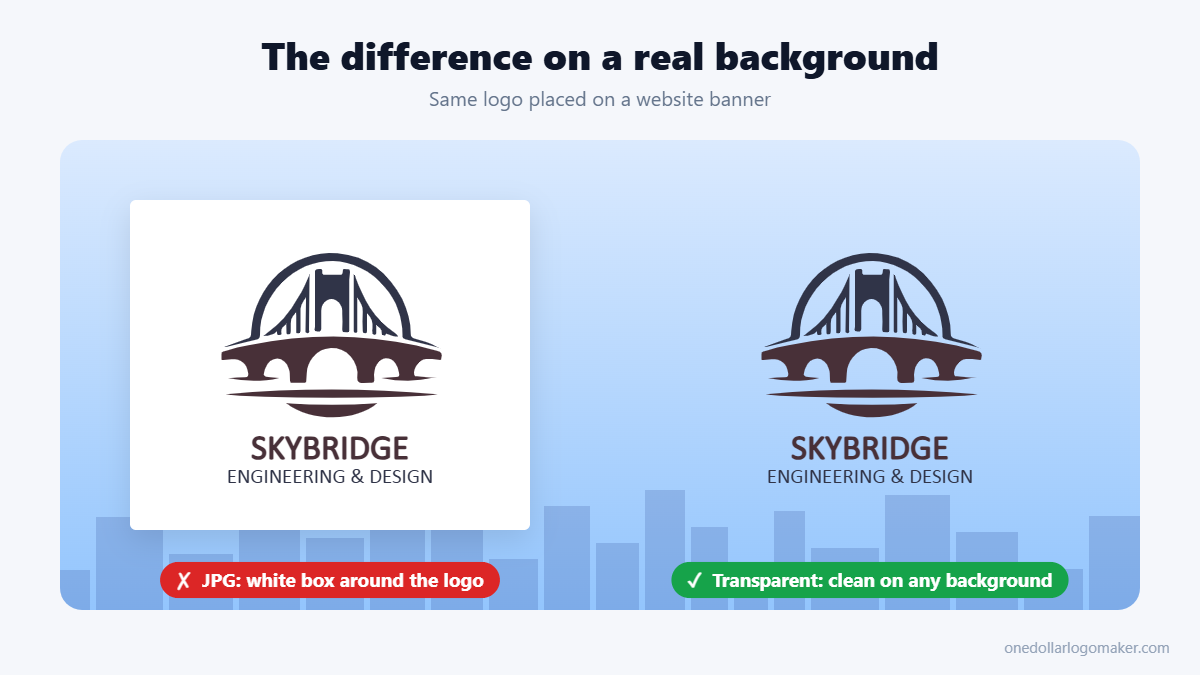
You finally have a logo you like. Then you place it on your website banner, a product photo, or a dark social media graphic, and it sits inside an awkward white rectangle. The fix is a logo with a transparent background, and it is one of the most useful versions of your logo you can have.
In this guide you will learn what a transparent background is, which file formats support it, how to create a transparent logo from the start, how to remove the background from a logo you already have, and how to check that the result looks clean everywhere. Our example throughout is a bridge logo for a fictional firm, SkyBridge Engineering & Design.
What Is a Transparent Logo?
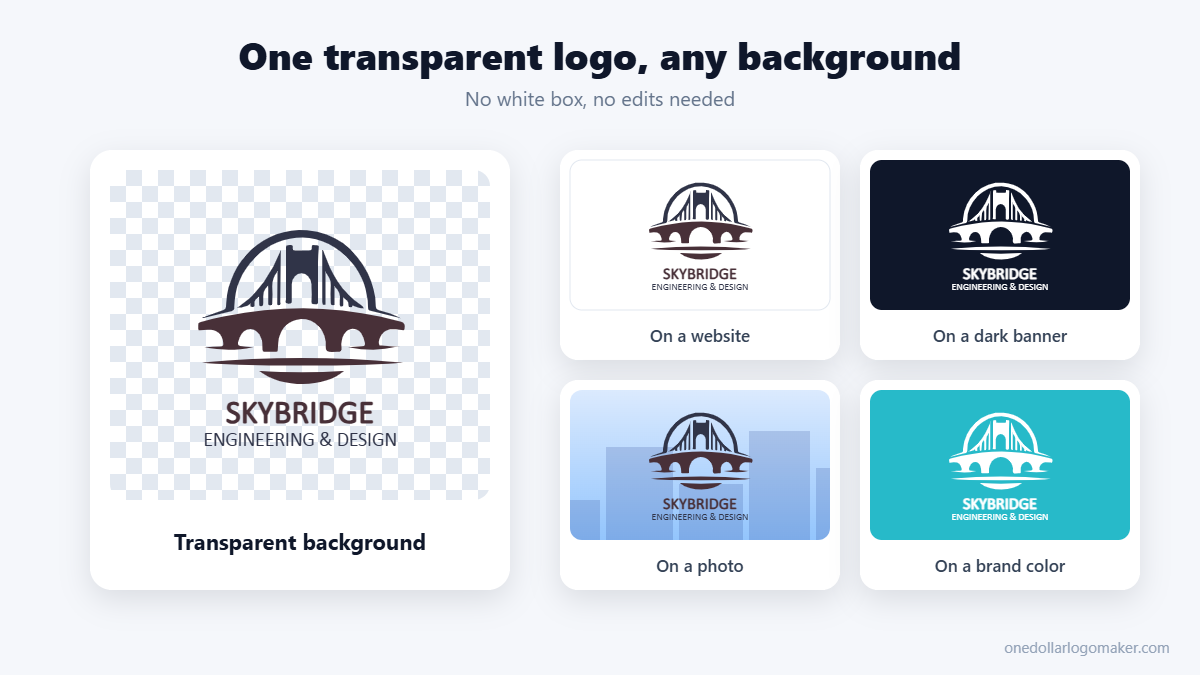
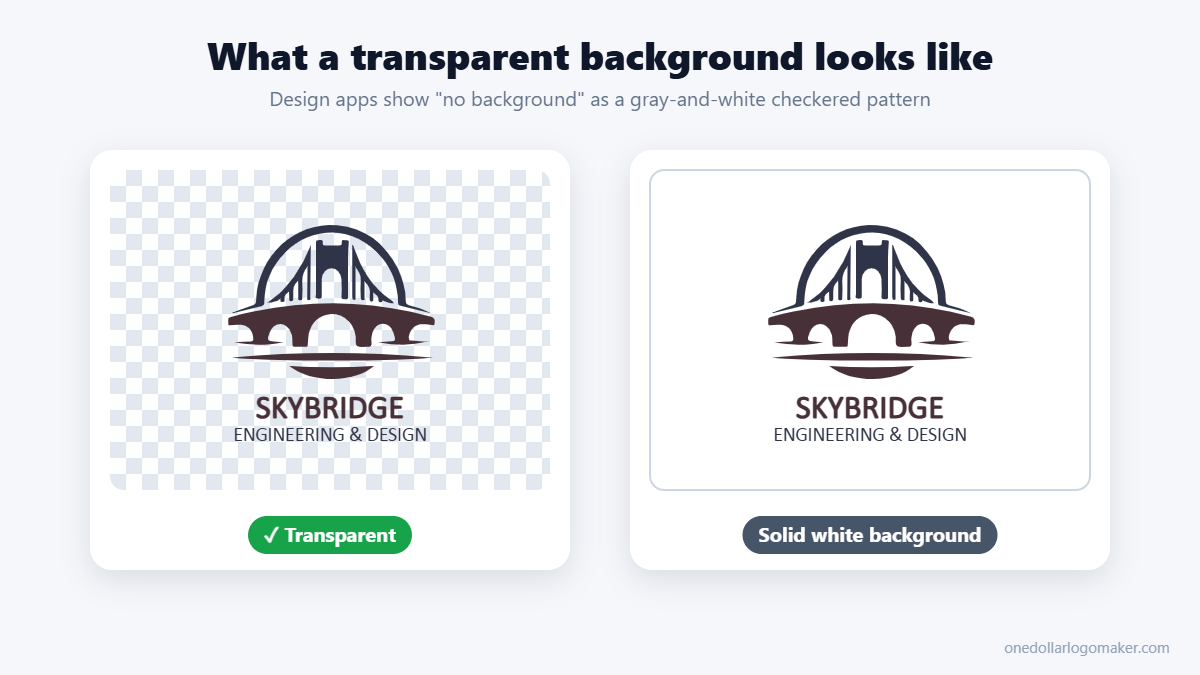
A transparent logo is a logo file where everything except the design itself is empty. There is no white, gray, or colored rectangle behind it, so whatever is underneath, such as a website header, photo, or T-shirt, shows through around the logo.
In most design apps, an empty background is shown as a gray-and-white checkered pattern. That pattern is not part of your logo. It simply tells you there is nothing there.
Why a Transparent Background Matters
A transparent logo is not just a design preference. It affects how professional your brand looks in everyday use:
No white box. Your logo blends naturally into colored website headers, banners, and social media graphics.
Works on photos. You can place it on product images, event photos, or watermarks without hiding part of the picture.
Ready for merchandise and print. Printers and T-shirt makers need to know which areas are logo and which are empty.
One file, many uses. The same transparent logo works on light and dark designs, with a white version for very dark backgrounds.
Which File Formats Support Transparency?
Not every file format can store a transparent background, so the format you choose matters as much as the design.
SVG: supports transparency and scales to any size. Ideal for websites and as your master file.
PDF: supports transparency and is the preferred format for printing.
PNG: supports transparency and works almost everywhere, including social media, presentations, and email signatures.
JPG: does not support transparency. A JPG always fills empty areas with a solid color, usually white.
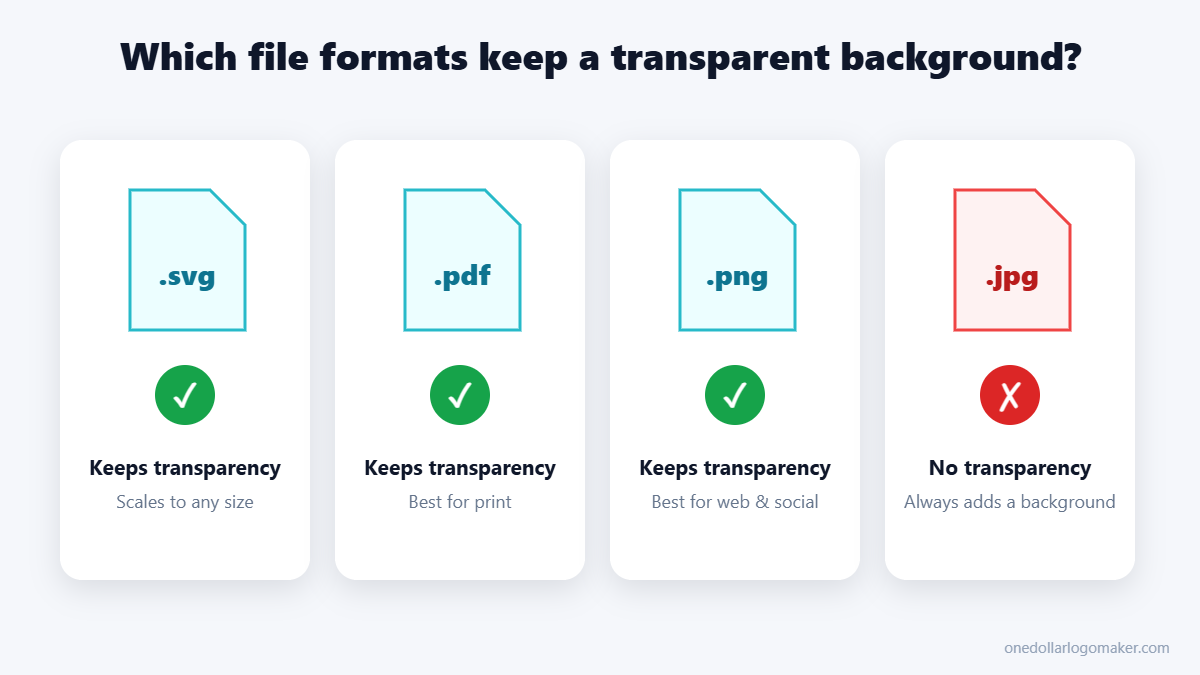
If your logo needs to sit on anything other than plain white, use SVG, PDF, or PNG. For a deeper comparison of these formats, see our guide to PNG vs SVG vs PDF logo files.
How to Make a Transparent Logo With One Dollar Logo Maker
The easiest way to get a transparent logo is to create it with a transparent background from the start. Here is how to do it with a template from One Dollar Logo Maker:
Choose a template. Find a design you like and open it in the editor with Customize & download.
Add your business name. Click the text on the canvas to replace the placeholder name and tagline, then adjust fonts and colors if you like.
Open the Background panel. Select Background in the left toolbar and pick the checkered swatch, which means transparent.
Preview it. Use the On white and On dark previews below the canvas to see how the logo looks on different backgrounds.
Download SVG or PDF. Both formats keep the transparent background. Use SVG for websites and PDF for printing.
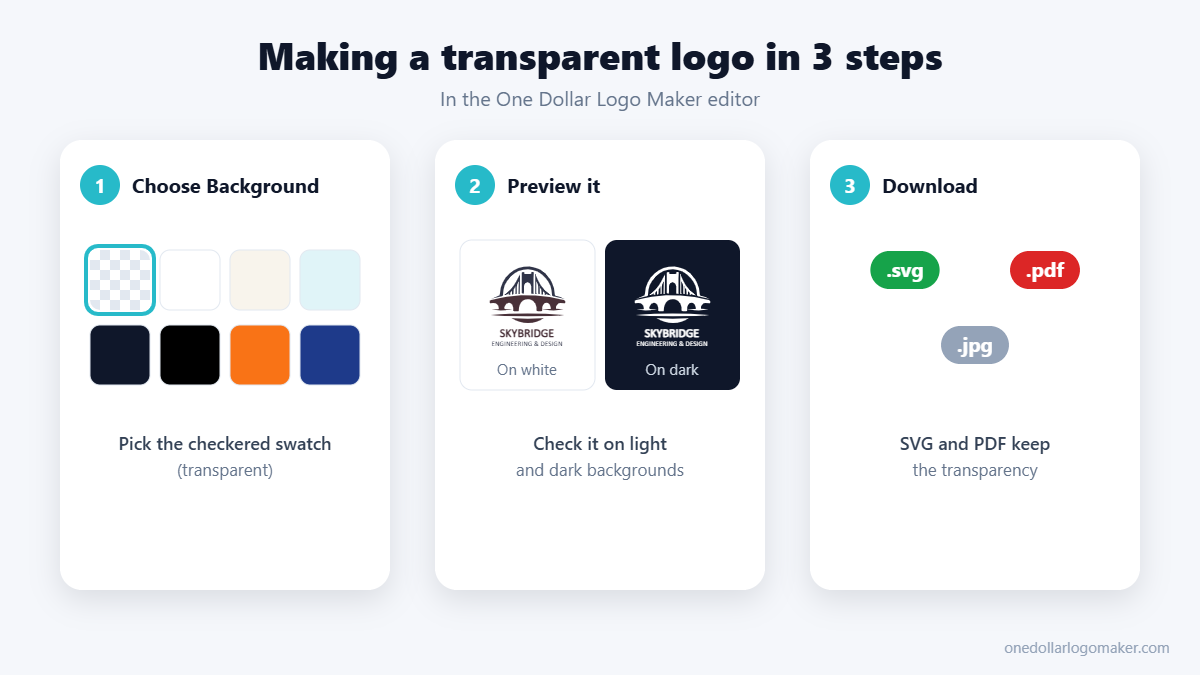
The example in this guide uses the Suspension Bridge Logo Template, customized with the name SkyBridge.
Need a transparent PNG?
Some platforms, such as social media sites and many email apps, do not accept SVG files. In that case, convert your transparent SVG to PNG using a free online SVG-to-PNG converter or a design app such as Figma, Inkscape, or Illustrator. Export at a large size, for example 2000 pixels wide, and make sure the transparent background option stays turned on.
How to Remove the Background From an Existing Logo
If you already have a logo saved as a JPG or a PNG with a white background, you can usually remove the background yourself.
Option 1: Use an online background remover
Tools such as remove.bg, Adobe Express, and Canva's background remover detect the logo and delete the background automatically. Upload your logo, download the result as a PNG, and check the edges closely, because fine lines and small text are sometimes trimmed by mistake.
Option 2: Use a design app
In Photoshop or GIMP, select the background with the Magic Wand or Select by Color tool, delete it, and export as PNG. In GIMP, add an alpha channel first so the deleted area becomes transparent instead of white.
Option 3: Use PowerPoint for a quick fix
For simple logos on a solid background, insert the image in PowerPoint, choose Picture Format, then Color, then Set Transparent Color, and click the background. Save the picture as PNG. This works well for flat logos but not for logos with gradients or shadows.
Removing a background from a small or blurry JPG often leaves rough edges. If the result does not look clean, it is usually faster and better to recreate the logo from a vector template than to keep repairing the old file.
How to Check That Your Logo Is Really Transparent
A file can look transparent in one app and still hide a white background. Before you use your new logo, run these quick checks:
Look for the checkered pattern. Open the file in a design app or browser image viewer that shows transparency.
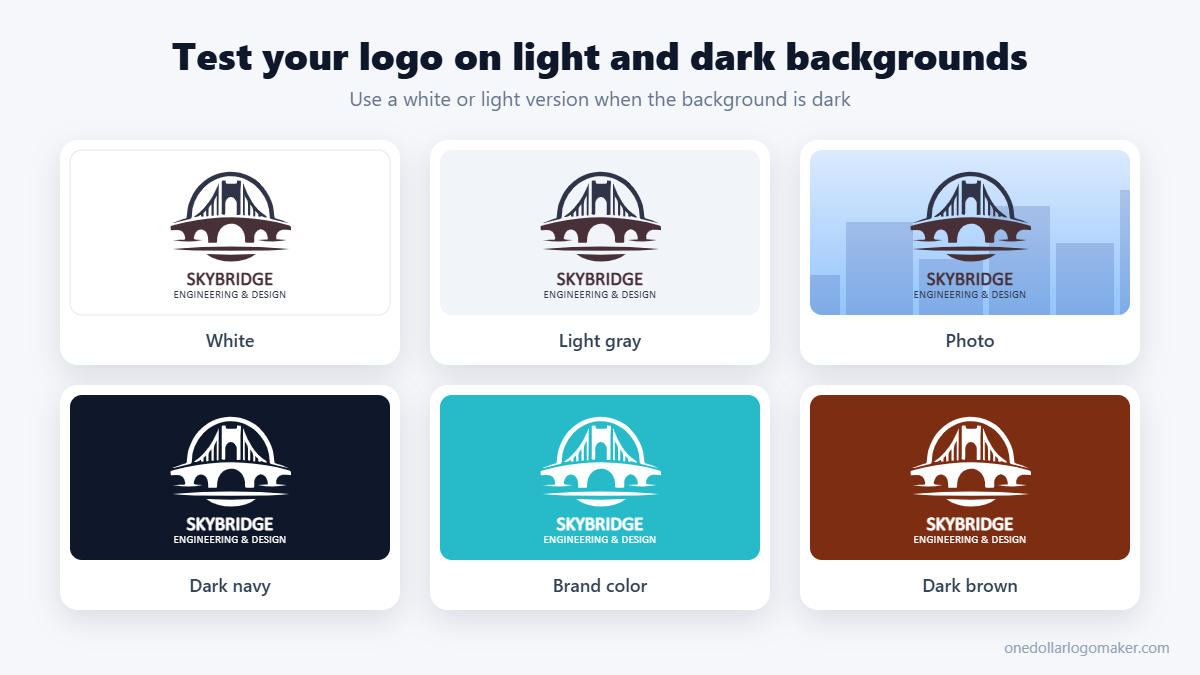
Place it on a dark background. Any leftover white box or white halo around the edges becomes obvious.
Zoom in on the edges. Look for jagged pixels, gray outlines, or bits of old background around curves and text.
Test light and dark versions. A dark logo disappears on a dark background, so keep a white or light version for those cases.
Check the file extension. If it ends in .jpg or .jpeg, it cannot be transparent.
Common Transparent Logo Mistakes
Saving as JPG
JPG cannot store transparency, so exporting a transparent design as JPG brings the white box straight back. Use PNG, SVG, or PDF instead.
Leaving a white halo
Background removers sometimes leave a thin white outline around the logo. It is hard to see on white but very visible on dark backgrounds, so always test on a dark color.
Using a dark logo on a dark background
Transparency does not fix poor contrast. Keep a white or light version of your logo for dark designs.
Exporting the PNG too small
A small PNG becomes blurry when it is enlarged. Export transparent PNGs at a generous size and scale them down where needed. Our logo size guide lists the right dimensions for websites, social media, and print.
Frequently Asked Questions
How do I make my logo transparent for free?
Use a free online background remover or a free design app like GIMP to delete the background, then export the logo as a PNG. If you are creating a new logo, choose a transparent background in your logo maker before downloading.
Which format should I use for a transparent logo?
Use PNG for websites, social media, and documents, SVG for scalable web use and editing, and PDF for printing. Avoid JPG, which does not support transparency.
Why does my transparent PNG show a white background?
The file may have been saved without transparency, the background may not have been fully removed, or the app you are using may be adding its own white background. Open the file on a dark background to check.
Can a JPG have a transparent background?
No. JPG does not support transparency. Convert the logo to PNG and remove the background, or download a PNG, SVG, or PDF version instead.
Do I need a transparent logo for printing?
Yes, in most cases. Printers prefer a vector PDF or SVG with a transparent background, so they can place your logo on any material or color without a visible box.
Final Thoughts
A transparent background is what makes a logo look at home everywhere, from your website header to a T-shirt or a product photo. Create it with a transparent background from the start, download it as SVG or PDF, convert it to PNG when a platform needs it, and test it on light and dark backgrounds before you use it.