
When you download a logo, you usually get several files: PNG, SVG, PDF, and sometimes JPG or EPS. They all look the same on screen, so it is easy to grab whichever one opens first. But using the wrong format is the reason logos end up blurry on websites, surrounded by an ugly white box on social media, or rejected by a printer.
The good news is that you only need to understand three formats to cover almost every situation: PNG, SVG, and PDF. This guide explains what each one is, where it works best, and which files you should keep. As an example, we will use one logo throughout, a leaf-and-music-note design for a fictional business called Green Note Music Studio.
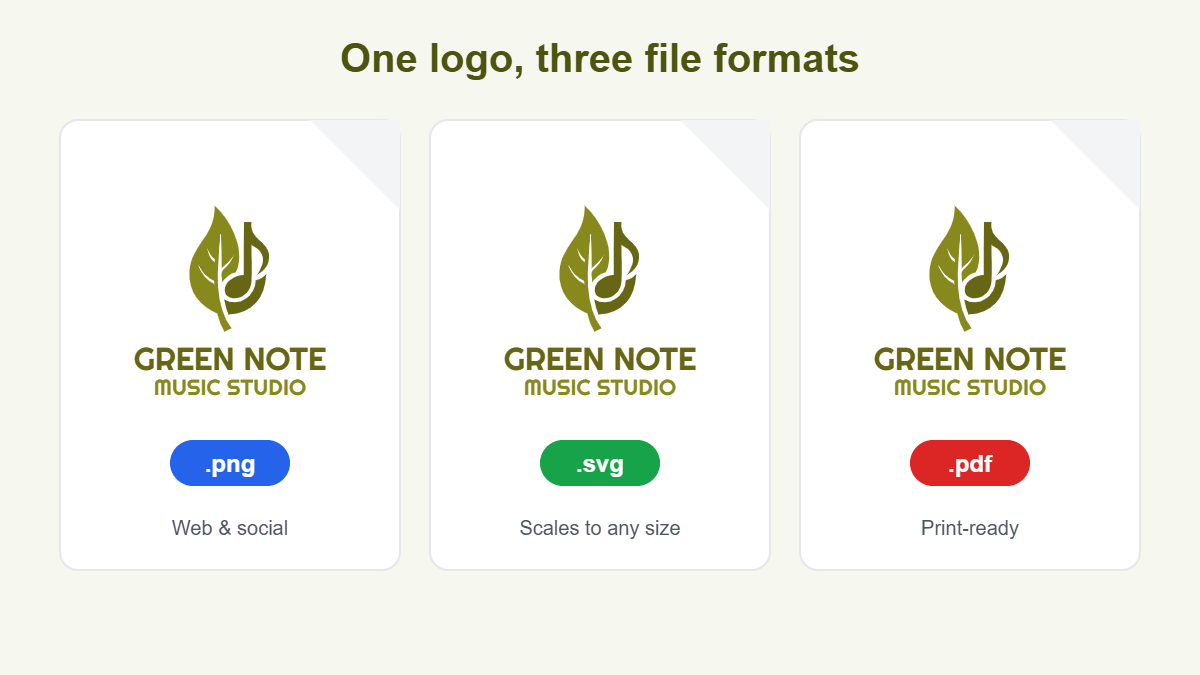
Quick Answer: Which Logo File Format Should You Use?
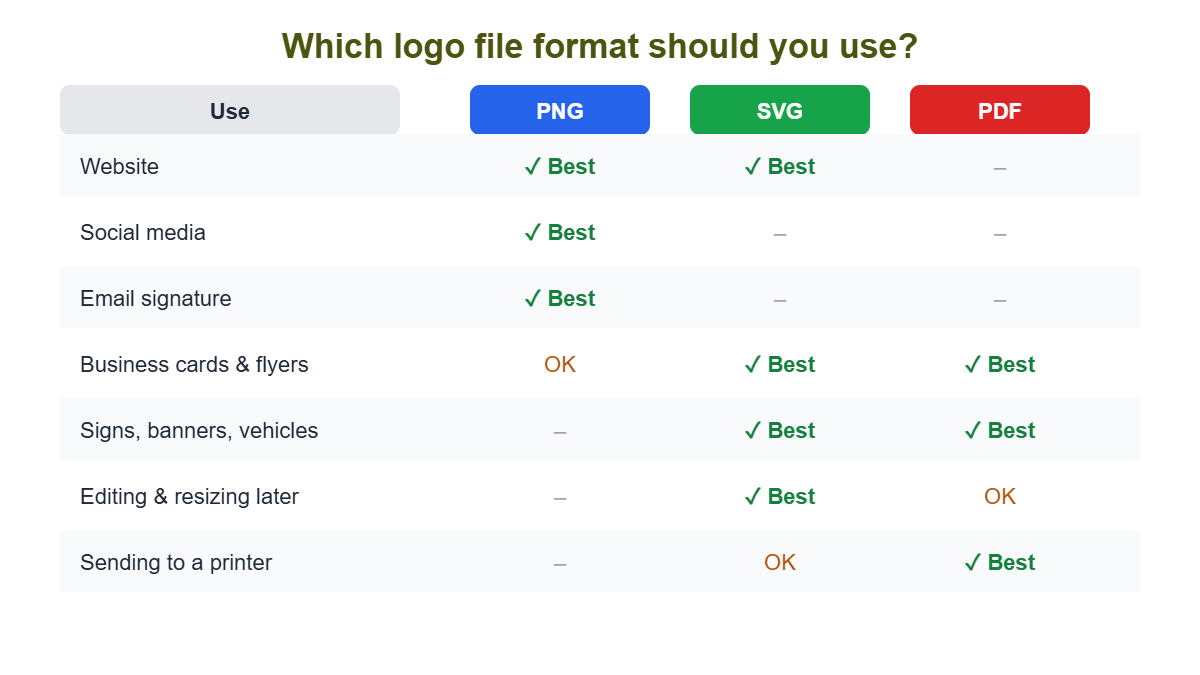
PNG for websites, social media, email signatures, and anywhere you need a transparent background.
SVG for websites that support it, for resizing, and for any time you or a designer need to edit or scale the logo.
PDF for printing: business cards, flyers, signs, and anything you send to a print shop.
Most businesses need all three. Keep them together in one logo folder and pick the right one for each job.
Raster vs Vector: The Difference That Matters
Every logo file is either raster or vector, and this one difference explains most logo problems.
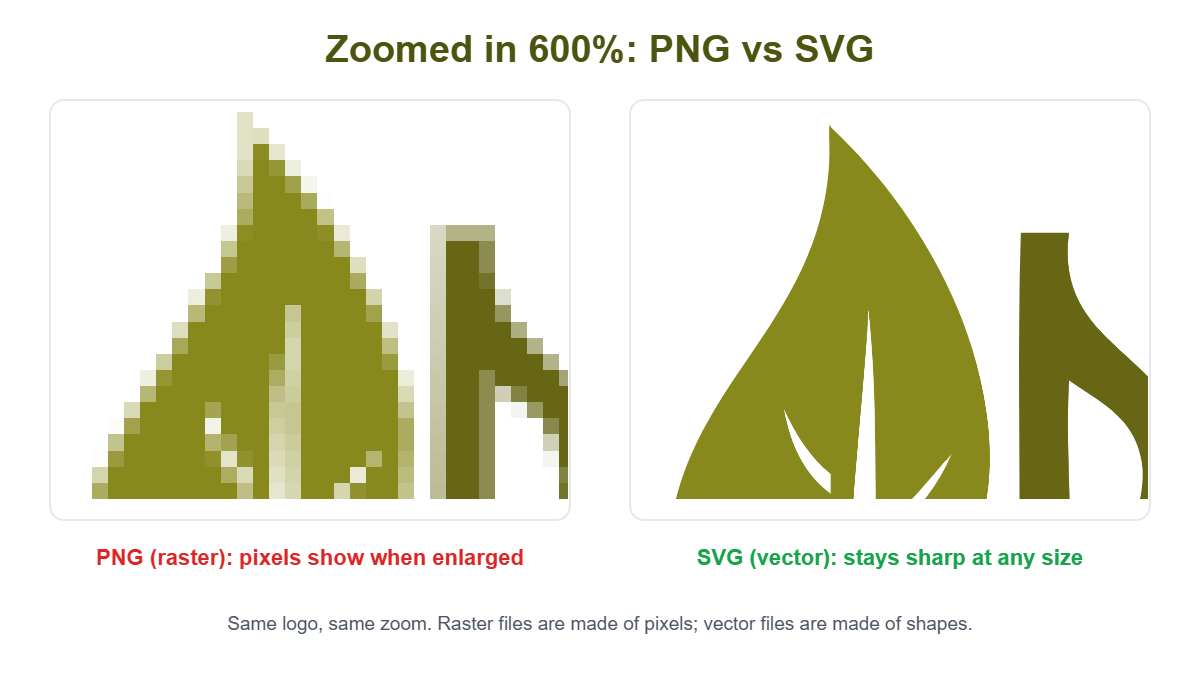
Raster files, such as PNG and JPG, are made of tiny squares called pixels. They look sharp at their original size, but when you enlarge them the pixels stretch and the edges become blurry or jagged.
Vector files, such as SVG, PDF, and EPS, are made of mathematical shapes and lines. Because the shapes are redrawn at any size, a vector logo looks just as sharp on a 1-inch business card as on a 10-foot banner.
That is why a designer or printer often asks for the "vector file". It is the original, scalable version of your logo that every other size can be made from.
PNG: Best for Web, Social Media, and Transparency
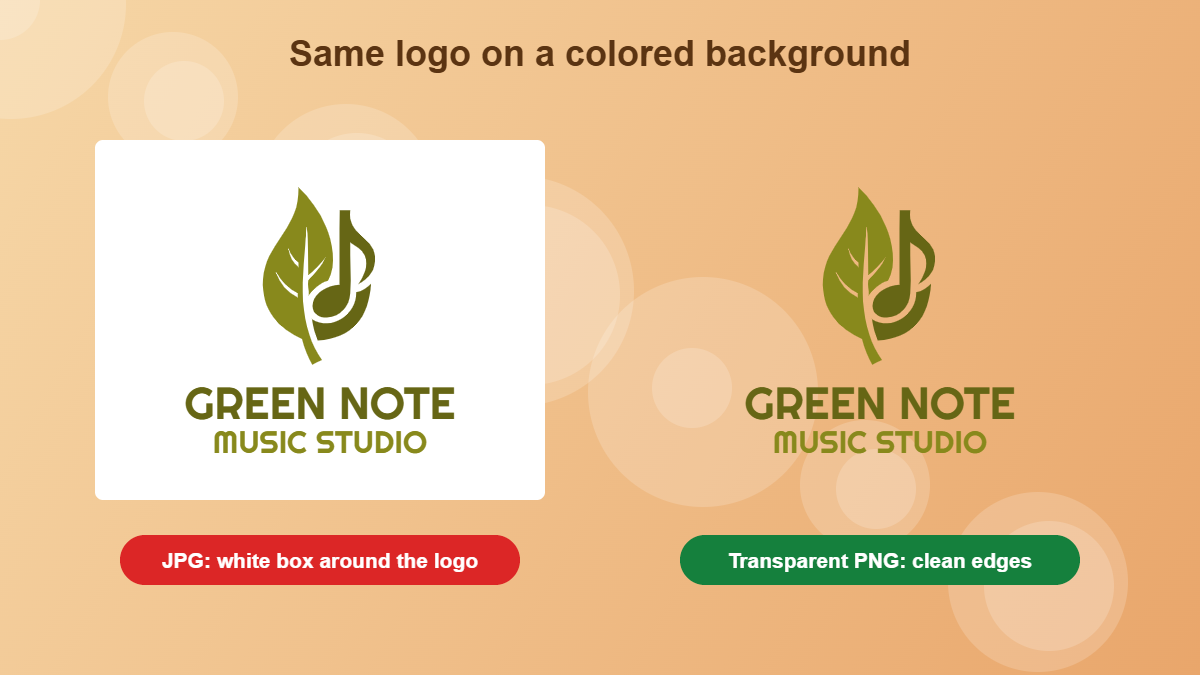
PNG is a raster format that supports transparent backgrounds. That makes it the most practical everyday logo file: you can place a transparent PNG on a colored website header, a photo, or a social media graphic, and only the logo itself shows.
Use PNG for
Website headers and footers
Social media profile pictures and posts
Email signatures
Presentations, documents, and online marketplaces
Limitations
PNG files cannot be enlarged without losing quality, so export them at the size you need or larger. For a sharp website logo, export at about twice the size it will be displayed. If you are not sure which dimensions to use, see our logo size guide.
SVG: Best for Scalability and Editing
SVG (Scalable Vector Graphics) is a vector format designed for the web. An SVG logo stays perfectly sharp at any size, usually has a very small file size, supports transparency, and can be edited, so colors and text can be changed later.
Use SVG for
Websites and online stores that accept SVG uploads
Website favicons in modern browsers
Sending your logo to a designer or developer
Creating new sizes and versions of your logo
Limitations
Not every platform accepts SVG. Most social media sites ask for PNG or JPG, many email apps do not display SVG images reliably, and some website builders block SVG uploads. In those cases, export a PNG from your SVG.
PDF: Best for Printing
PDF is the format printers know best. A PDF can contain vector artwork, so a logo saved as PDF keeps its sharp edges at any print size, and it opens on almost every computer without special software.
Use PDF for
Business cards, letterheads, and flyers
Brochures, menus, and packaging
Signs, banners, and vehicle graphics
Any file you send to a print shop
Limitations
PDF is not meant for displaying a logo on a website or uploading it as a social media picture. A PDF is also only vector if it was created from vector artwork; a PDF made from a small PNG is still a small, pixelated image inside a PDF.
PNG vs SVG vs PDF: Side-by-Side Comparison
Feature | PNG | SVG | |
|---|---|---|---|
File type | Raster (pixels) | Vector (shapes) | Usually vector |
Transparent background | Yes | Yes | Yes |
Scales without losing quality | No | Yes | Yes, if vector |
Best for | Web and social media | Web, editing, resizing | Printing |
Social media uploads | Yes | Usually not accepted | No |
Email signatures | Yes | Not reliable | No |
Sending to a printer | Only at high resolution | Often accepted | Preferred |
Easy to edit later | No | Yes | Sometimes |
Opens on any device | Yes | In browsers and design apps | Yes |
What About JPG and EPS?
JPG is a raster format made for photos. It does not support transparency, so a JPG logo always comes with a background, usually a white box. It is fine when the logo will sit on a white background, but PNG is almost always the better choice.
EPS is an older vector format still requested by some printers and sign makers. If a printer asks for EPS, you can usually send PDF or SVG instead, but it is worth asking which they prefer.
You may also see WebP, a modern web image format that supports transparency and smaller file sizes. It is useful for websites, but PNG remains the safest choice for sharing your logo.
Why You Should Keep Multiple Formats
There is no single best logo format, because each one solves a different problem. Instead of choosing one, keep a simple logo package:
SVG master file for editing and creating new sizes
PDF for printing
Transparent PNG in a large size, for example 2000 px wide
Square PNG for social media profiles
White and black versions for dark and light backgrounds
When you customize a template with One Dollar Logo Maker, you can download your logo in formats including PNG, SVG, and PDF, so you have the right file ready for both screen and print. The example in this article is based on the Musical Note Green Sound Logo Template.
Common Logo File Format Mistakes
Using a JPG on a colored background
This creates a visible white box around the logo. Use a transparent PNG instead.
Enlarging a small PNG
Stretching a PNG makes it blurry. Go back to the SVG or PDF and export a larger PNG.
Renaming a PNG to SVG
Changing the file extension does not turn an image into a vector. A real SVG has to be created from vector artwork.
Sending a screenshot to the printer
Screenshots are low-resolution raster images. Printers need a PDF or another vector file to print sharp results.
Using SVG in email signatures
Many email apps do not display SVG files. Use a small PNG for email signatures.
Frequently Asked Questions
What is the best file format for a logo?
There is no single best format. Use SVG as your editable master file, PNG for websites and social media, and PDF for printing.
Is SVG better than PNG for a logo?
SVG is better for quality and resizing because it never becomes pixelated. PNG is better for compatibility, because almost every platform, app, and email client accepts it.
Which logo format is best for printing?
A vector PDF is usually the best choice for printing. SVG and EPS are also vector formats that many printers accept.
Does PNG support a transparent background?
Yes. PNG supports transparency, which is why it is the most common logo format for websites and social media. JPG does not support transparency.
Can I convert a PNG logo to SVG?
Tracing tools can convert simple PNG logos to SVG, but the result often needs cleaning up. It is much easier to keep the original vector file from the start.
Final Thoughts
The difference between PNG, SVG, and PDF comes down to where your logo will appear. Use PNG for screens, SVG for scaling and editing, and PDF for print, and keep all three in one folder. With the right file ready for each job, your logo will look sharp everywhere, from your Instagram profile to your shop sign.